You learned Vim/Neovim on a standard QWERTY keyboard layout and are considering switching to an alternative layout like Colemak or Dvorak: How do you reconcile your established muscle memory with this new typing paradigm? Or, maybe you already use an alternative keyboard layout and are just getting into Vim. Do you remap some or all of the keys to their original QWERTY positions, or leave them wherever they fall on the keyboard?
Content Preview
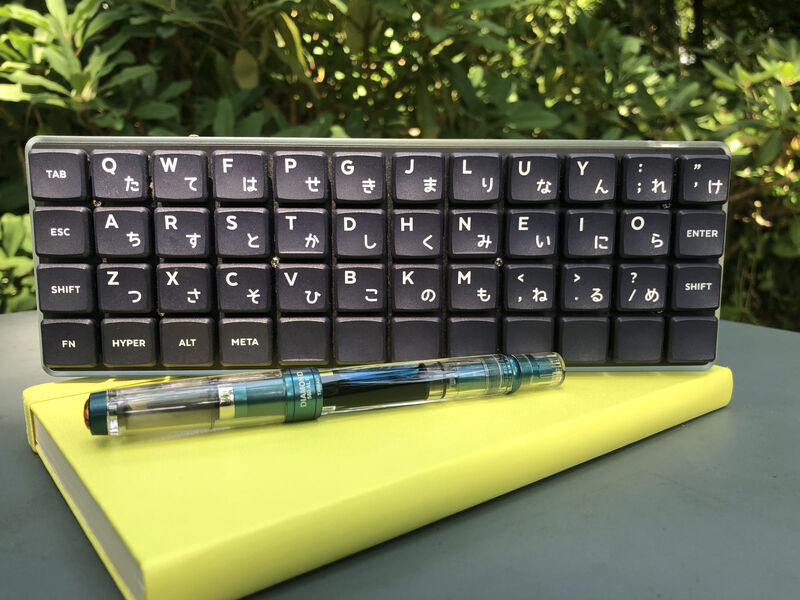
Technik keyboard with frosted acrylic case, Choc Robin switches, and MBK Legends key caps
You learned Vim/Neovim on a standard QWERTY keyboard layout and are considering switching to an alternative layout like Colemak or Dvorak: How do you reconcile your established muscle memory with this new typing paradigm? Or, maybe you already use an alternative keyboard layout and are just getting into Vim. Do you remap some or all of the keys to their original QWERTY positions, or leave them wherever they fall on the keyboard?
Remap or Retrain?
If you’ve already learned Vim on QWERTY it may be tempting to try to preserve your existing muscle memory by remapping a bunch of keys to their original QWERTY placements (perhaps using the
langmap
feature). While this may help with the transition in the short term, it creates a major incompatibility between your personal setup and Vim’s stock configuration. Remapping doesn’t ultimately make much sense, since almost all normal-mode commands are assigned to keys mnemonically, not based on their physical positions.
What About
h
j
k
l
?
The iconic home-row
h
,
j
,
k
, and
l
directional movement keys are often at the center of Colemak keyboard converts’ consternation. In reality, linewise—and especially characterwise—cursor movement is not central to Vim’s editing model. These motion commands are complemented by a host of alternative commands, including those based on word boundaries (e.g.,
w
,
b
), columns (e.g.,
0
,
$
), and search targets (e.g.,
f
,
/
), meaning that simple characterwise motions are rarely needed and are rarely the best option in a given scenario.
With that assessment in mind, their placement on the keyboard’s home row is of diminished importance. Here are a few suggestions for handling directional navigation keys in an alternative layout:
Use
h
j
k
l
in their new placements:
Their placement is still fairly intuitive in Colemak, as long as you reconceptualize linewise movement like you’re pitching up and down with a joystick.
Just use the arrow keys:
That’s what they’re there for, after all.
Use a navigation layer:
My QMK-based keyboard firmware provides a separate
navigation layer
that is activated by holding a thumb key. The layer provides
Home
PgUp
PgDn
End
and
←
↑
↓
→
on the home row. This is the compromise I prefer, since my keyboard doesn’t have dedicated directional keys, and it works the same across any software, rather than being Vim-specific.
You learned Vim/Neovim on a standard QWERTY keyboard layout and are considering switching to an alternative layout like Colemak or Dvorak: How do you reconcile your established muscle memory with this new typing paradigm?
Here are some of the most useful changes I’ve made to my typing setup and habits:
Content Preview
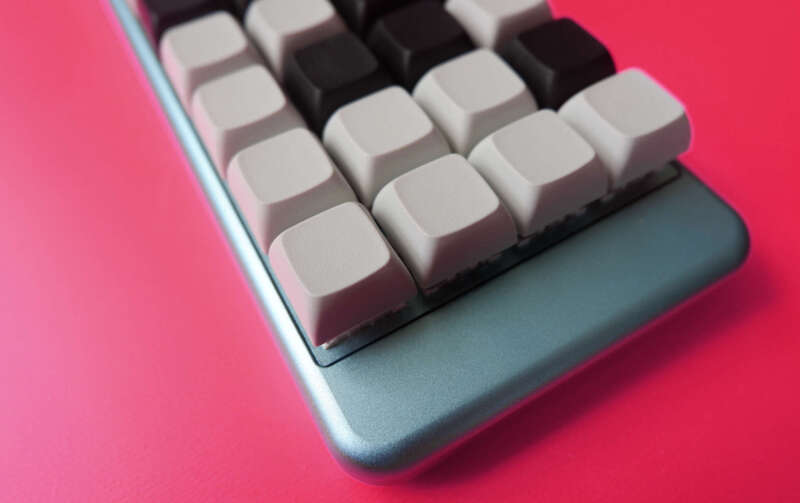
XKDB4x keyboard with Hako Violet switches and XDA-profile key caps
Here are some of the most useful changes I’ve made to my typing setup and habits:
Taking advantage of dual-function keys:
Modifier keys such as Control and Alt represent free real estate for assigning alternative functions when pressed alone (e.g., tapping Control emits Escape).
Training on opposite-side modifier keys:
I started out typing with some bad habits, including holding a modifier key (especially shift) with the same hand pressing another key. Switching to a layout that provides symmetrically placed modifier keys and making a conscious effort to use them with the opposite hand is noticeably more comfortable.
Ditching row-staggered layouts:
The horizontally offset rows of a traditional keyboard are completely nonsensical, a surprisingly persistent holdover from mechanical typewriters. Switching to an
ortholinear Planck-like layout
is more comfortable and incidentally fixed some unwanted touch-typing quirks.
Ditching extraneous physical keys:
I only have 10 fingers, and so I’ve found that returns from adding more physical keys start diminishing at around 30. There’s no reason for a given key to be inconvenient to use because it’s hard to reach. I’ve settled on a 48-key layout, but probably something more like 40 is ideal.
Replacing common shortcuts with combos:
QMK’s combos feature allows you to assign a function to two or more keys tapped simultaneously. By far, my most used combos are ZX for Cut, XC for Copy, and CV for Paste. Mashing these adjacent keys with the left hand while mousing with the right is a bit more comfortable than combining X, C, or V with a modifier key using the same hand.
Taking advantage of macros:
Your keyboard can type out whole sequences of characters for you. Some of my most used macros include contact information and some miscellanea such as “https://”.
Retaining QWERTY when I switched to an alternative:
QWERTY’s arrangement of alphanumeric keys isn’t very sensible for someone who predominately types English, so I switched to an alternative (Colemak). While I do prefer Colemak over QWERTY, it presents some challenges, particularly with using others’ devices. My typing time is divided between my highly customized ortho keyboard(s) and a built-in laptop keyboard. I made the decision early on in the transition to Colemak to stick to QWERTY on the laptop keyboard. I find that I can maintain a mental separation between layouts more easily because the physical layouts are so different.
From ortholinear layouts to custom keyboard firmware, these are some of the most useful changes I've made to my typing setup and habits.
Browser cookies fulfill a useful purpose for the user: they maintain state for websites, keeping you logged into an account between pages, say. As long as the user has control of who sets cookies when, the tradeoff between utility and privacy hazard is acceptable because cookies can serve the interests of the user. Unfortunately, they are also widely abused for the purposes of tracking people across the Web. One of the easiest ways to accomplish cross-site tracking like this is through third-party cookies, where a cookie is set by an embedded resource on a Web page, such as a social media widget, which can then correlate your visit with a visit to another website that embeds the same widget. Browser vendors are therefore starting to take measures against cross-site tracking via cookies, given that third-party cookies have very few legitimate uses. For example, recent version of Mozilla Firefox implement restrictions on tracking through what they call Total Tracking Protection and Total Cookie Protection. The third-party cookie’s days are numbered.
Content Preview
Browser cookies fulfill a useful purpose for the user: they maintain state for websites, keeping you logged into an account between pages, say. As long as the user has control of who sets cookies when, the tradeoff between utility and privacy hazard is acceptable because cookies can serve the interests of the user. Unfortunately, they are also widely abused for the purposes of tracking people across the Web. One of the easiest ways to accomplish cross-site tracking like this is through third-party cookies, where a cookie is set by an embedded resource on a Web page, such as a social media widget, which can then correlate your visit with a visit to another website that embeds the same widget. Browser vendors are therefore starting to take measures against cross-site tracking via cookies, given that third-party cookies have very few legitimate uses. For example, recent version of Mozilla Firefox implement restrictions on tracking through what they call Total Tracking Protection and Total Cookie Protection. The third-party cookie’s days are numbered.
Because of Google’s existing surveillance reach through Chrome, one of the world’s most popular browsers, as well as through extensive Google-operated Web infrastructure, the obsolescence of third-party cookies decidedly disadvantages Google’s competitors more than it does Google itself. For this reason, Google is eager to pull the plug on third-party cookies and install their own system in its place. For a while, the new proposed system was FLoC, which was widely condemned as a privacy disaster. Google recently announced their latest iteration called the Topics API, which is largely more of the same.
There will no doubt be much debate and posturing over the privacy implications of this new scheme in the coming months, but this is a misdirection that misses the larger problem: that Google is building a feature into a program you use that serves no one’s interests but their own, a model
anti-feature
. Whether it be through the Topics API or another tracking technology yet to be revealed, they want to use your computer to carry out a surveillance regime targeted at
you
. Such user-hostile functionality doesn’t belong in any software, let alone a program dubbed a “user agent.”
Google is, in fact, incapable of taking an ethical course of action because respecting the privacy and autonomy of computer users represents an existential threat to the surveillance capitalist model in which Google is firmly entrenched. No “solution” Google develops in the aftermath of third-party cookies will be palatable. If Google’s mass surveillance programs are to be tempered, it must be via effective regulation, and in the meantime, by public pressure through the refusal to install and use the Chrome browser.
In anticipation of the obsolescence of third-party browser cookies, Google Chrome tries new surveillance scheme after privacy backlash against FLoC.
Broadly, an anti-feature is any feature of a program that works against the user’s interests. This often happens when a feature is added to a program that prioritizes another party’s interests over those of the user. Anti-features are exceedingly common in proprietary software, where the balance of power rests heavily on the side of the software developer, whereas anti-features are relatively rare in free software, which respects users’ freedoms to use, modify, and distribute the program as they wish, thus shifting power back into users’ hands.
Content Preview
Broadly, an
anti-feature
is any feature of a program that works against the user’s interests. This often happens when a feature is added to a program that prioritizes another party’s interests over those of the user. Anti-features are exceedingly common in proprietary software, where the balance of power rests heavily on the side of the software developer, whereas anti-features are relatively rare in free software, which respects users’ freedoms to use, modify, and distribute the program as they wish, thus shifting power back into users’ hands.
For many, GNU/Linux represents the most convenient and pragmatic choice for a free operating system that offers reprieve from software anti-features. That’s why it was notable when the GNU/Linux distribution Elementary OS
announced the introduction of a blatant anti-feature
into their operating system’s software update mechanism in 2018.
This anti-feature is intended to be an incentive to fund software developers’ work. In their own words, “monetized apps you haven’t yet paid for will show our HumbleButton on the updates page, and when you press ‘Update All’ we’ll skip updating these apps.” That is, programs that are designated as “monetized” in Elementary’s software repository are excluded from being updated via the “Update All” functionality unless the user has paid some amount of money to the program’s developer. Otherwise, the user must update each program individually.
It is the Elementary team’s explicit intention to introduce artificial inconvenience in order to influence the behavior of the users of their operating system to support the interests of third parties. “By not including paid apps in ‘Update All’,” they write, “there is a bit of a convenience tax if you choose not to pay continually. We know that nag screens are inconvenient. They’re meant to be. We know that paying is also inconvenient, so we have to level the playing field a bit.” This unambiguously qualifies as an anti-feature, regardless of whether one accepts that the justification given overcomes the ethical compromise the feature introduces.
It’s my contention that anti-features
always
represent an intolerable ethical compromise. They contradict the spirit of free software, turning the tools we ought to be able to rely on against us, in this case by paternalistically imposing artificial limitations. For me, running Elementary OS is an unacceptable proposition until this feature is removed.
For many, GNU/Linux represents the most convenient and pragmatic choice for a free operating system that offers reprieve from software anti-features. That's why it was notable when the GNU/Linux distribution Elementary OS announced the introduction of a blatant anti-feature into their operating system's software update mechanism in 2018.
Vim’s most straightforward method of global search is its :grep command, which invokes 'grepprg' (often grep or a drop-in replacement such as ag). It’s awkward that Vim dumps the output of 'grepprg' and prompts the user to return to editing by pressing Enter. It’s possible to eliminate that extraneous and disorienting step without creating a custom command by using a command-line-mode abbreviation:
Content Preview
Vim’s most straightforward method of global search is its
:grep
command, which invokes
'grepprg'
(often
grep
or a drop-in replacement such as
ag
). It’s awkward that Vim dumps the output of
'grepprg'
and prompts the user to return to editing by pressing
Enter
. It’s possible to eliminate that extraneous and disorienting step without creating a custom command by using a command-line-mode abbreviation:
cnoreabbrev
— Define a non-recursive command-line abbreviation
<expr>
— Interpret the right-hand side of the abbreviation as an expression instead of literally
grep
— The string to expand
getcmdtype() ==# ':'
— Is the context the command line (as opposed to a
/
or
?
search)?
getcmdline() =~# '^grep'
— Does the content of the command line begin with “grep”?
? 'silent grep'
— If so, expand “grep” to “silent grep”…
: 'grep'
— …else expand “grep” to itself (i.e., do nothing)
And the second line does the same, but for
:lgrep
, of course.
Now, when you run
:grep
/
:lgrep
, you won’t get
any
visual feedback. That can be improved by automatically showing the quickfix or location list window:
The
QuickFixCmdPost
autocommand matches its pattern against the command run, so the first one will open the quickfix list window for commands
not
beginning with
l
such as
:grep
, and the second will open the location list window for commands beginning with
l
such as
:lgrep
.
Vim's most straightforward method of global search is its :grep command, which invokes 'grepprg' (often grep or a drop-in replacement such as ag). I outline a few lightweight changes that make working with :grep less awkward.
The Planck (pictured above) is a 40% mechanical keyboard with an ortholinear layout
(the keys are arranged in columns rather than being staggered as on a traditional typewriter keyboard).
The keys are laid out in a 4 × 12 grid.
You can find out more about the rationale and the physical properties of the board on the
OLKB website and this early writeup on my layout.
Content Preview
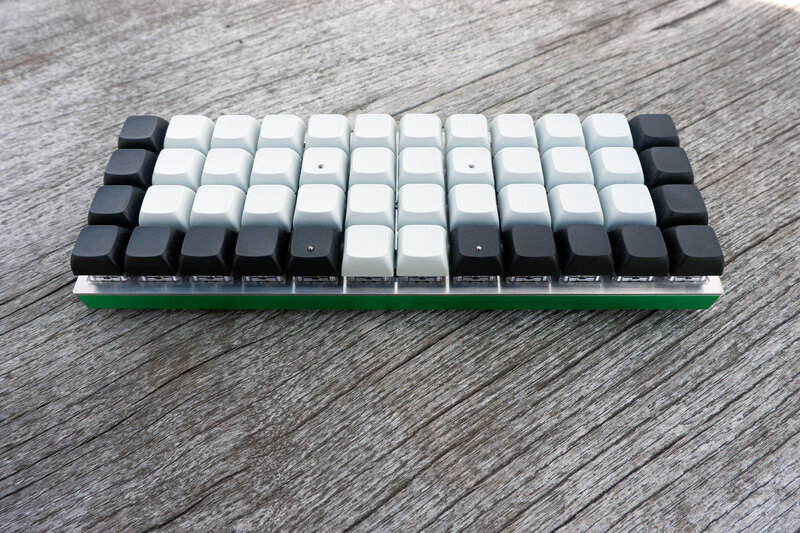
Planck keyboard with steel plate, milled aluminum bottom, and modded XDA-profile key caps
QMK Firmware
The Planck (pictured above) is a 40% mechanical keyboard with an ortholinear layout
(the keys are arranged in columns rather than being staggered as on a traditional typewriter keyboard).
The keys are laid out in a 4 × 12 grid.
You can find out more about the rationale and the physical properties of the board on the
OLKB website
and
this early writeup on my layout
.
The board’s microcontroller is programmed through the free/libre
QMK firmware
, which allows for a great
deal of flexibility in implementing keyboard layouts.
QMK has some interesting features including the relatively new
Combo feature
:
The Combo feature is a chording type solution for adding custom actions. It lets you hit multiple keys at once and produce a different effect. For instance, hitting
A
and
S
within the tapping term would hit
ESC
instead, or have it perform even more complex tasks.
To enable this feature, [you] need to add
COMBO_ENABLE = yes
to your
rules.mk
.
Having dabbled a bit in
stenography
via
Plover
, this feature immediately caught my attention.
Could one develop a hybrid input method that was typing-centric but allowed for common words to be stroked as if on a steno keyboard?
Stenographic Combos
B
+
C
T
+
I
L
+
D
M
+
K
Y
+
U
F
A
S
T
!
→
because this would make you fast!
I started out with a
list of common words in English
and chose chords (strokes) that felt most intuitive to me. I also took some cues from Plover steno theory, but it was impossible to imitate steno very closely because of the nature of keyboard layouts such as QWERTY, which were not designed with this sort of thing in mind.
In my implementation
each combo triggers
SEND_STRING
in order to output a word (or word affix) followed by a space:
Combo
Translation
A
+
B
about
A
+
N
and
A
+
T
@
B
+
C
because
E
+
G
e.g.,
H
+
V
have
I
+
E
i.e.,
I
+
O
tion
(suffix)
L
+
D
would
M
+
K
make
M
+
T
ment
(suffix)
T
+
H
the
T
+
I
this
T
+
L
until
U
+
R
you're
W
+
A
what
W
+
C
which
W
+
I
with
W
+
L
will
Y
+
R
your
Y
+
U
you
Note that what I came up with is specifically tailored to the
Colemak layout
, but one could just as easily adapt this idea to QWERTY, Dvorak, and others.
This was only a first pass—I expect to revise and expand this system over time.
Challenges & Limitations
Layout
— Colemak (or QWERTY etc.) was not designed with chording in mind, unlike a steno layout. That constrains the number of chords with good mnemonics somewhat, since certain potentially useful chords require two or more keys on the same finger.
Capitalization
—
I haven’t found a good way to output capitalized variants of words. All my combos are defined in lowercase, meaning that I can’t use any of my chords at the beginning of a sentence, for example.
Update: I got around to making the macros
produce alternate output
when the
Shift
key is held. For example,
the
versus
The
and
http://
versus
HTTP
.
Overlapping
—
Due to a limitation of the combo feature’s current implementation, if you define a combo as a subset of another combo, chording the bigger combo triggers both combos. This precludes doing something clever like
H
+
V
→
have
and
H
+
V
+
G
→
having
(you would wind up with
have having
).
Update: This limitation was eliminated thanks to
work done on QMK’s combo implementation
.
QMK's combo feature opens up interesting possibilities for a hybrid input method inspired by stenography. Here are my initial thoughts and implementation.
Vim has a class of commands that execute their arguments in the context of each
of a collection of entities, including tab pages, windows, buffers, items in
the arg list, etc. Here is a summary:
Content Preview
Vim has a class of commands that execute their arguments in the context of each
of a collection of entities, including tab pages, windows, buffers, items in
the arg list, etc. Here is a summary:
Command
Applies to
:tabdo
Tab pages
:windo
Windows in the current tab
:bufdo
Buffers
:argdo
Files in the arg list
:cdo
Entries in the quickfix list
:cfdo
Files in the quickfix list
:ldo
Entries in the location list
:lfdo
Files in the location list
Each of these commands takes another command as its argument. For example, to
replace the string “Emacs” with “Vim” in all buffers:
:bufdo %s/Emacs/Vim/g
Commands can be combined with
|
to perform multiple actions, so we can also
write the changes from the substitution with
:update
in the same invocation:
:bufdo %s/Emacs/Vim/g|update
Finally, the
:*do
commands take a range to restrict the items iterated over.
To apply a substitution only to the first three entries of the quickfix list:
Vim has a class of commands that execute their arguments in the context of each of a collection of entities, including tab pages, windows, buffers, items in the arg list, etc. This is a summary of such commands.
A
:Composer
command wraps
composer
with smart completion of subcommands and flags. It even completes package names from remote package repositories such as
packagist.org
. Composer.vim doesn’t care what your current working directory is, rather it activates when the current buffer belongs to a Composer project, and Composer.vim has no trouble dealing with multiple Composer projects simultaneously.
Navigate to source files by invoking
<Plug>(composer-find)
with the cursor on a class, interface, or trait name. This feature takes advantage of Composer’s autoloader to take you to the right file. The fully-qualified class name will be resolved automatically from the context. No tags file is needed.
Insert a
use
statement for the class, interface, or trait under the cursor by invoking
<Plug>(composer-use)
. Composer.vim can also keep your
use
statements sorted alphabetically, although this feature is currently experimental.
Optional
Projectionist
support: Invoke
:Ecomposer
to edit your project’s
composer.json
,
:A
to jump to
composer.lock
and back.
Composer.vim provides Vim support for Composer PHP projects. Features include a command-line wrapper with smart completion of subcommands, flags, and even package names from remote package repositories such as packagist.org; go-to-definition for classes, interfaces, and traits using Composer's autoloader; and integrations with Projectionist.vim and Dispatch.vim.
The Planck is a 40% computer keyboard with an ortholinear layout
(the keys are arranged in columns rather than being staggered as on a traditional typewriter keyboard).
The keys are laid out in a 4 × 12 grid with a 2-unit-wide spacebar on the bottom row, for a total of 47 keys.
This arrangement is referred to as the MIT layout.
The alternative offered is the grid layout with 48 keys, all 1-unit wide.
You can find out more about the rationale and the physical properties of the board on the
Ortholinear Keyboards website.
Content Preview
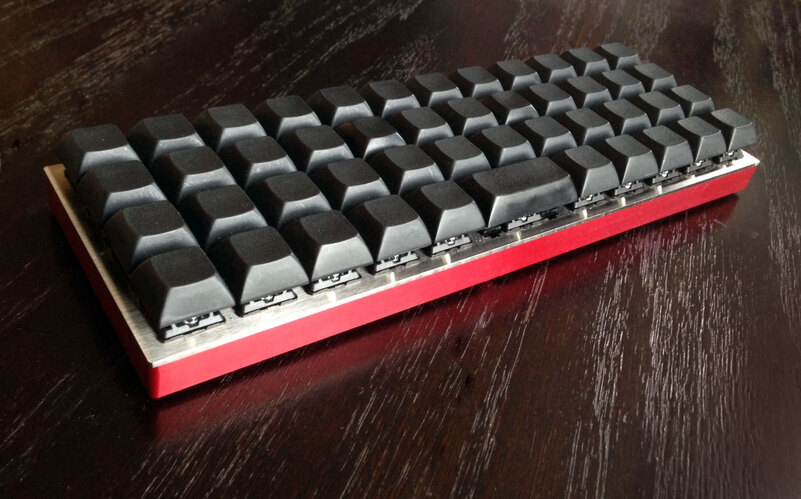
Planck keyboard with steel plate, red milled aluminum bottom, and DSA-profile key caps
The Planck is a 40% computer keyboard with an ortholinear layout
(the keys are arranged in columns rather than being staggered as on a traditional typewriter keyboard).
The keys are laid out in a 4 × 12 grid with a 2-unit-wide spacebar on the bottom row, for a total of 47 keys.
This arrangement is referred to as the MIT layout.
The alternative offered is the grid layout with 48 keys, all 1-unit wide.
You can find out more about the rationale and the physical properties of the board on the
Ortholinear Keyboards website
.
The board’s microcontroller is programmed through the free/libre
Quantum MK firmware
, which allows for a great
deal of flexibility in implementing keyboard layouts. The keymap is organized into layers that one can switch between by
holding or tapping function keys.
Base layer (Qwerty)
Tab
Q
W
E
R
T
Y
U
I
O
P
'
Fn5
Esc
Ctrl
A
S
D
F
G
H
J
K
L
;
Fn4
Ret
Ctrl
(
Shift
Z
X
C
V
B
N
M
,
.
/
)
Shift
[
Fn3
{
Hyper
<
Alt
Super
Fn1
Space
Fn2
Super
>
Alt
}
Hyper
]
Fn3
The base layer, or default layer, is the active layer when the keyboard is powered on. Function keys can be used to
temporarily switch to another layer, which changes what some or all of the keys do, until you switch back to the base
layer. I opted for as much symmetry as possible in the base layer so that I could chord with opposing hands, at the
expense of including some conveniences such as arrow keys and backspace, which had to be relegated to other layers. On
the other hand, I was able to include pairs of parentheses, brackets, and braces by implementing them as
tap actions on
modifier keys
. The
Fn1-5
keys switch to various other layers for the duration of being pressed.
The prominent position of the
Esc
key is based on the location of
Caps Lock
on a traditional
keyboard, which I had remapped to a dual-role
Esc
/
Ctrl
key in software (especially useful for
Vim). Doing the same for a dual-role
Return
/
Ctrl
key for use with other keyboards proved
problematic for some software, however implementing this in the keyboard’s firmware avoids any such issues.
Base layer (Colemak)
Tab
Q
W
F
P
G
J
L
U
Y
;
'
Fn5
Esc
Ctrl
A
R
S
T
D
H
N
E
I
O
Fn4
Ret
Ctrl
(
Shift
Z
X
C
V
B
K
M
,
.
/
)
Shift
[
Fn3
{
Hyper
<
Alt
Super
Fn1
Space
Fn2
Super
>
Alt
}
Hyper
]
Fn3
This is an alternate base layer for the
Colemak layout
. The default layer can be changed through special
actions that can be attached to keys (more on that below). The dimmed keys depicted above are “transparent.” That is,
they inherit the functionality of the lower layer (the base Qwerty layer in this case), which saves you the trouble of
having to redefine keys that don’t change between layers.
Numeric layer
Sup-`
F1
F2
F3
F4
F5
F6
F7
F8
F9
F10
'
Fn5
Esc
Ctrl
1
2
3
4
5
6
7
8
9
0
Ret
Ctrl
(
Shift
-
=
`
\
a
b
c
d
e
f
)
Shift
[
Fn3
{
Hyper
<
Alt
Super
Fn1
Backspace
Fn2
Super
>
Alt
}
Hyper
]
Fn3
The function key under the left thumb engages the numeric layer, which contains F-keys, number keys (including
allowances for typing hexadecimal numbers), and unshifted symbols that appear in the US keyboard layout.
This layer also contains a backspace function in the spacebar position (mnemonic: hold the function key to the left of
the spacebar to delete characters to the left).
Symbol layer
Sup-`
F11
F12
F13
F14
F15
F16
F17
F18
F19
F20
'
Fn5
Esc
Ctrl
!
@
#
$
%
^
&
*
'
"
Ret
Ctrl
(
Shift
_
+
~
|
–
—
)
Shift
[
Fn3
{
Hyper
<
Alt
Super
Fn1
Delete
Fn2
Super
>
Alt
}
Hyper
]
Fn3
The symbol layer, in addition to including higher order F-keys, includes the shifted number keys for typing symbols that
would otherwise require two modifiers to access on the Planck.
This layer contains a forward delete key in the spacebar position (mnemonic: hold the function key to the right of the
spacebar to delete characters to the right).
Directional navigation layer
Sup-`
'
Fn5
Esc
Ctrl
Home
PgUp
PgDn
End
←
↓
↑
→
;
Fn4
Ret
Ctrl
(
Shift
)
Shift
[
Fn3
{
Hyper
<
Alt
Super
Fn1
Fn2
Super
>
Alt
}
Hyper
]
Fn3
60% keyboards that lack dedicated arrow keys tend to place them on a function layer in the Qwerty IJKL position.
Because I am used to Vim’s characterwise/linewise movement on HJKL, I placed arrow keys there instead. The layer can
comfortably be activated by holding the semicolon key with one’s pinky. The conceptually “bigger” counterparts of those
directional movement keys are placed symmetrically on Qwerty SDFG.
This layer can be activated with either pinky or even with the edge of one’s palm. Since this layer packs a lot of
functionality into both sides of the keyboard, it was important to be able to activate the layer with either hand given
that the bottom corner keys are relatively awkward to reach.
The bottom row contains media controls, such as play/pause, volume up/down, and screen brightness controls. The
left-hand side offers mouse controls on WASD while the right-hand side provides shortcuts for my window manager to snap
the active window to areas of the screen, make it full-screen, or throw it to another monitor.
Keyboard layer
Reset
Debug
'
Fn5
Qwer.
Cole.
...
LED -
LED Toggle
LED +
The keyboard layer pertains to functionality local to the keyboard:
controlling the backlighting, setting the default layer,
and putting the firmware into reset or debug mode.
The Planck is a 40% computer keyboard with an ortholinear layout (the keys are arranged in columns rather than being staggered as on a traditional typewriter keyboard). The keys are laid out in a 4 × 12 grid with a 2-unit-wide spacebar on the bottom row, for a total of 47 keys. Here's how I set mine up for programming on Unix-like systems.